- TIPS & TRICKS/
- SQL Cheat Sheet: 40 Queries With Examples/
- TIPS & TRICKS/
- SQL Cheat Sheet: 40 Queries With Examples/
SQL Cheat Sheet: 40 Queries With Examples
Every query below runs against the same four tables: Orders (OrderID, CustomerID, OrderDate, ShipDate, Amount, Region, Status), Customers (CustomerID, CustomerName, City), OrderLines (OrderID, ProductID, Qty, UnitPrice) and Products (ProductID, ProductName, Category). The syntax is SQL Server's, which is what our courses teach; the handful of functions that differ elsewhere are marked. Each one has a one-line note on what it does and the mistake people most often make with it.
Download the printable PDFSelecting and filtering
SELECT OrderID, OrderDate, Amount
FROM Orders;SELECT TOP 10 OrderID, Amount
FROM Orders
ORDER BY Amount DESC;SELECT DISTINCT Region
FROM Orders;WHERE Region = 'North' AND Amount > 1000WHERE Region IN ('North', 'South', 'East')WHERE OrderDate >= '2026-01-01' AND OrderDate < '2026-04-01'WHERE CustomerName LIKE 'A%'WHERE Status IS NULLORDER BY Region, OrderDate DESCAggregating
SELECT COUNT(*) FROM Orders;SELECT Region, SUM(Amount) AS Total, AVG(Amount) AS Average
FROM Orders
GROUP BY Region;SELECT Region, SUM(Amount) AS Total
FROM Orders
GROUP BY Region
HAVING SUM(Amount) > 50000;SELECT COUNT(DISTINCT CustomerID) AS Customers
FROM Orders;SELECT YEAR(OrderDate) AS Yr, MONTH(OrderDate) AS Mth, SUM(Amount) AS Total
FROM Orders
GROUP BY YEAR(OrderDate), MONTH(OrderDate)
ORDER BY Yr, Mth;Joins
SELECT o.OrderID, c.CustomerName
FROM Orders o
INNER JOIN Customers c ON o.CustomerID = c.CustomerID;SELECT o.OrderID, c.CustomerName
FROM Orders o
LEFT JOIN Customers c ON o.CustomerID = c.CustomerID;SELECT c.CustomerID, c.CustomerName
FROM Customers c
LEFT JOIN Orders o ON o.CustomerID = c.CustomerID
WHERE o.OrderID IS NULL;SELECT p.Category, SUM(l.Qty * l.UnitPrice) AS Revenue
FROM Orders o
JOIN OrderLines l ON l.OrderID = o.OrderID
JOIN Products p ON p.ProductID = l.ProductID
GROUP BY p.Category;Subqueries and CTEs
WHERE CustomerID IN (SELECT CustomerID FROM Customers WHERE City = 'Leeds')SELECT c.CustomerName
FROM Customers c
WHERE EXISTS (SELECT 1 FROM Orders o WHERE o.CustomerID = c.CustomerID AND o.Amount > 5000);WHERE Amount > (SELECT AVG(Amount) FROM Orders)WITH Monthly AS (
SELECT YEAR(OrderDate) AS Yr, MONTH(OrderDate) AS Mth, SUM(Amount) AS Total
FROM Orders GROUP BY YEAR(OrderDate), MONTH(OrderDate)
)
SELECT * FROM Monthly WHERE Total > 10000;Conditions, text and dates
CASE WHEN Amount >= 1000 THEN 'Large'
     WHEN Amount >= 100 THEN 'Medium'
ELSE 'Small' END AS BandSUM(CASE WHEN Status = 'Cancelled' THEN 1 ELSE 0 END) AS CancelledCOALESCE(Region, City, 'Unknown')CAST(Amount AS DECIMAL(10, 2)) AS Amount2dpDATEDIFF(DAY, OrderDate, ShipDate) AS DaysToShipWHERE OrderDate >= DATEADD(MONTH, -3, CAST(GETDATE() AS DATE))CONCAT(c.CustomerName, ' (', c.City, ')') AS LabelLEN(TRIM(CustomerName)) AS NameLengthEOMONTH(OrderDate) AS MonthEndWindow functions
ROW_NUMBER() OVER (PARTITION BY CustomerID ORDER BY OrderDate DESC) AS rnSUM(Amount) OVER (PARTITION BY Region ORDER BY OrderDate) AS RunningTotalLAG(Amount) OVER (PARTITION BY CustomerID ORDER BY OrderDate) AS PreviousAmountRANK() OVER (ORDER BY Amount DESC) AS AmountRankCombining and changing data
SELECT CustomerID, OrderDate FROM Orders
UNION ALL
SELECT CustomerID, OrderDate FROM ArchivedOrders;UPDATE Orders
SET Status = 'Closed'
WHERE OrderID = 5012;DELETE FROM Orders
WHERE Status = 'Test';BEGIN TRAN;
UPDATE Orders SET Status = 'Closed' WHERE Region = 'North';
-- check the row count, then one of:
ROLLBACK; -- or COMMIT;CREATE VIEW vMonthlySales AS
SELECT YEAR(OrderDate) AS Yr, MONTH(OrderDate) AS Mth, SUM(Amount) AS Total
FROM Orders GROUP BY YEAR(OrderDate), MONTH(OrderDate);Which course covers these
Selecting, filtering, GROUP BY and the inner and left joins are SQL Introduction to Querying. SQL Fundamentals of Querying is the one-day version for people who need to read and write everyday queries fast. Subqueries, CTEs, window functions, UNION, transactions and views are SQL Advanced Querying.
SQL Introduction to QueryingSQL Fundamentals of QueryingSQL Advanced QueryingNext available dates
SQL Introduction to Querying
Live, instructor-led training with a real trainer. Book a seat on a scheduled date below, or get a quote for your team to run it privately.
1 Dec 2026
Tuesday · Virtual · 2 day
£825per person + VAT
4 Feb 2027
Thursday · Virtual · 2 day
£825per person + VAT
5 Apr 2027
Monday · Virtual · 2 day
£825per person + VAT
Other courses related to this article
- SQLSQL Fundamentals of QueryingBuild your SQL confidence in just one day. This beginner-focused course uses practical instruction to help you query databases for everyday business questions. Taught by experienced instructors, you'll develop relevant SQL skills for your daily work tasks, from basic data selection to working across multiple tables.1 Day · Classroom or on-site
- SQLSQL Advanced QueryingTake your SQL skills to the next level with our 1-day advanced course, ideal for those already confident in the basics. Through hands-on instructor-led training, you’ll develop the ability to manage and manipulate data, tables, and databases using advanced queries. Gain practical techniques that translate directly to real-world data projects.1 Day · Classroom or on-site
Ready to train your team?
Tell us what you need and we'll come back to you with a detailed quote.
- Tailored contentBuilt around your team's work and skill levels.
- Flexible schedulingDates and times that suit your team, not ours.
- Your place or onlineDelivered at your office or virtually.
- Better value per headOne trainer, one day, your whole team.
- A dedicated trainerYour team gets all of the trainer's attention.
- Realistic examplesSample data built around the kind of work your team does.
We reply with available dates and a price for your team. No obligation.
Related Articles
 Tips & Tricks
Can you Calculate Variance Using Excel?
In this guide, we explain variance as a measure of how widely data points deviate from the mean and shows why understanding this spread is useful for deeper insight and risk assessment. It walks readers through calculating variance in Excel, distinguishing between the VAR.S function for a sample and VAR.P for an entire population, then demonstrates each with a car-sales case study.
 Tips & Tricks
How to Use Excel Lookup with Multiple Criteria
This blog explains how Excel’s LOOKUP functions—particularly XLOOKUP and VLOOKUP—can retrieve data based on multiple criteria. It walks through a step-by-step example of finding an employee’s sales in a specific region, showing both an XLOOKUP formula and a VLOOKUP alternative that uses a helper column.
 Tips & Tricks
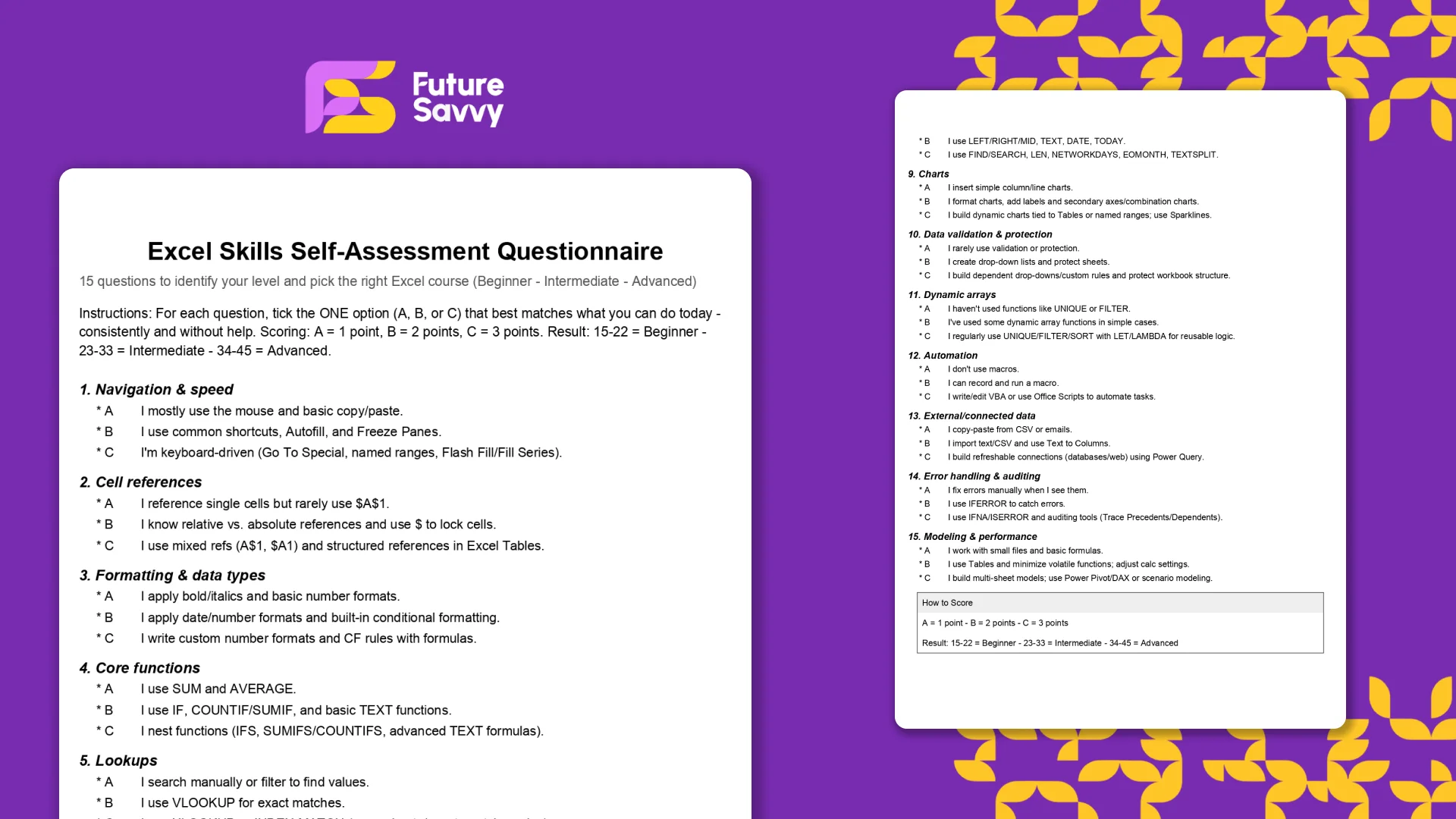
Excel Skills Self-Assessment Questionnaire
This free, printable Excel Skills Self-Assessment helps you quickly gauge your level and pick the right next step in your learning path. It contains 15 multiple-choice questions spanning navigation, formulas, lookups, tables, PivotTables, charts, dynamic arrays, Power Query, and more. You’ll score yourself and interpret the result to see whether you’re Beginner, Intermediate, or Advanced - then follow tailored course recommendations based on your score.
Insights for modern teams
Stay ahead with our latest learning trends, tools, and success stories. Enter your email address below to receive updates from us.