- TIPS & TRICKS/
- 7 Power Automate Flows That Save UK Office Teams Hours Every Week/

- TIPS & TRICKS/
- 7 Power Automate Flows That Save UK Office Teams Hours Every Week/
7 Power Automate Flows That Save UK Office Teams Hours Every Week

Most teams already pay for Power Automate. It's bundled into Microsoft 365 — sitting there, unused, while people copy data between apps by hand, chase approvals over email, and rebuild the same report every Monday morning.
You don't need to be a developer to fix that. Power Automate works on a simple idea: when this happens, do that. A form gets submitted, so a message posts to Teams. An email arrives with an attachment, so the file saves to SharePoint. Once you've seen a flow built, you can build one yourself.
Here are seven flows worth building first — chosen because they're quick to set up and they attack the admin that eats real hours.
Save email attachments straight to SharePoint or OneDrive
The manual version: someone emails an invoice, you download it, rename it, drag it into the right folder. Fifty times a week.
The flow: When a new email arrives (with an attachment) → save the attachment to a chosen SharePoint library. Add a condition so it only fires for emails from a specific sender or with a keyword in the subject, and you've automated a job nobody enjoys.
Why it matters: finance and ops teams lose hours to file-shuffling. This is usually the first flow that makes someone say “oh — I get it now.”
Full walkthrough: Save email attachments to SharePoint, step by step — build this one first, it's live now.
Get a Teams alert when something important lands
The manual version: refreshing an inbox or a shared mailbox waiting for the one email that actually matters.
The flow: When a new email arrives matching your criteria → post a message in a Teams channel (or send yourself a chat). Now the whole team sees the trigger the moment it happens, instead of one person playing gatekeeper.
Works just as well for: a new file added to a folder, a new response to a form, or a row added to a shared list.
Full walkthrough: Send a Teams alert when an important email arrives, step by step — the alerting pattern, start to finish.
Turn a Microsoft Form into an instant task
The manual version: someone submits a request form, you read it, then manually create a task and assign it.
The flow: When a new Form response is submitted → create an item in a Planner or SharePoint list with the details mapped across. Internal requests — IT tickets, holiday requests, content briefs — route themselves and nothing falls through the cracks.
Full walkthrough: Turn a Microsoft Form response into a Planner task, step by step — including how to map the answers across.
Send a reminder before a deadline
The manual version: keeping deadlines in your head and hoping you remember to nudge people.
The flow: On a schedule (say, every morning) → check a list for items due in 2 days → send a reminder email or Teams message. Great for renewals, review dates, compliance deadlines — anything where a missed date costs money.
Full walkthrough: Send an automatic reminder before a deadline, step by step — with the date filter that actually works.
Route approvals without the email tennis
The manual version: “Can you approve this?” → wait → chase → forward → lose the thread.
The flow: When a request is submitted → start an approval → notify the requester of the outcome. Power Automate has a built-in Approvals action: the approver clicks Approve or Reject inside Teams or email, and the flow records the decision. No more digging through a mailbox to find who signed off on what.
Full walkthrough: Route approvals in Teams without the email tennis, step by step — covering both the approve and reject paths.
Log form submissions to an Excel or SharePoint list
The manual version: copy-pasting enquiries into a spreadsheet so you have a running record.
The flow: When a new response comes in (Forms, or a website enquiry via a connector) → add a row to an Excel table or SharePoint list. You get a clean, searchable log building itself in the background — the foundation for any reporting you do later.
Full walkthrough: Log every form submission to Excel or SharePoint, step by step — with the field mapping done for you.
Post a scheduled digest so nobody has to compile it
The manual version: someone builds the “here's what happened this week” summary by hand every Friday.
The flow: On a weekly schedule → gather the items (new list rows, completed tasks, new files) → post a formatted summary to Teams or email. The recurring report writes itself, and the person who used to build it gets their Friday afternoon back.
Full walkthrough: Post a scheduled weekly digest to Teams, step by step — the Select and Join pattern explained.
Start small, then let it snowball
The teams that get the most out of Power Automate don't start with a grand plan. They automate one annoying task, feel the time come back, and then spot the next one. Pick the flow above that matches the admin your team complains about most, and build that first.
The connectors, conditions, and approvals shown here are all things you can learn in a day of hands-on practice. Our Power Automate courses are built for exactly this: business users, not developers, building real flows they take straight back to work. Start with Power Automate Introduction if flows are new to your team, or Power Automate Advanced if you're ready to handle approvals, error handling, and multi-step logic.
If your team already leans on Copilot, pairing it with automation is where the real productivity gains show up — see our Copilot for Business training too.
Ready to stop doing the admin by hand? Browse our Power Automate training or talk to us about a session for your team.
Next available dates
Power Automate Introduction
Live, instructor-led training with a real trainer. Book a seat on a scheduled date below, or get a quote for your team to run it privately.
27 Nov 2026
Friday · Virtual · 1 day
£445per person + VAT
28 Jan 2027
Thursday · Virtual · 1 day
£445per person + VAT
30 Mar 2027
Tuesday · Virtual · 1 day
£445per person + VAT
Other courses related to this article
Ready to train your team?
Tell us what you need and we'll come back to you with a detailed quote.
- Tailored contentBuilt around your team's work and skill levels.
- Flexible schedulingDates and times that suit your team, not ours.
- Your place or onlineDelivered at your office or virtually.
- Better value per headOne trainer, one day, your whole team.
- A dedicated trainerYour team gets all of the trainer's attention.
- Realistic examplesSample data built around the kind of work your team does.
We reply with available dates and a price for your team. No obligation.
Related Articles
 Tips & Tricks
Can you Calculate Variance Using Excel?
In this guide, we explain variance as a measure of how widely data points deviate from the mean and shows why understanding this spread is useful for deeper insight and risk assessment. It walks readers through calculating variance in Excel, distinguishing between the VAR.S function for a sample and VAR.P for an entire population, then demonstrates each with a car-sales case study.
 Tips & Tricks
How to Use Excel Lookup with Multiple Criteria
This blog explains how Excel’s LOOKUP functions—particularly XLOOKUP and VLOOKUP—can retrieve data based on multiple criteria. It walks through a step-by-step example of finding an employee’s sales in a specific region, showing both an XLOOKUP formula and a VLOOKUP alternative that uses a helper column.
 Tips & Tricks
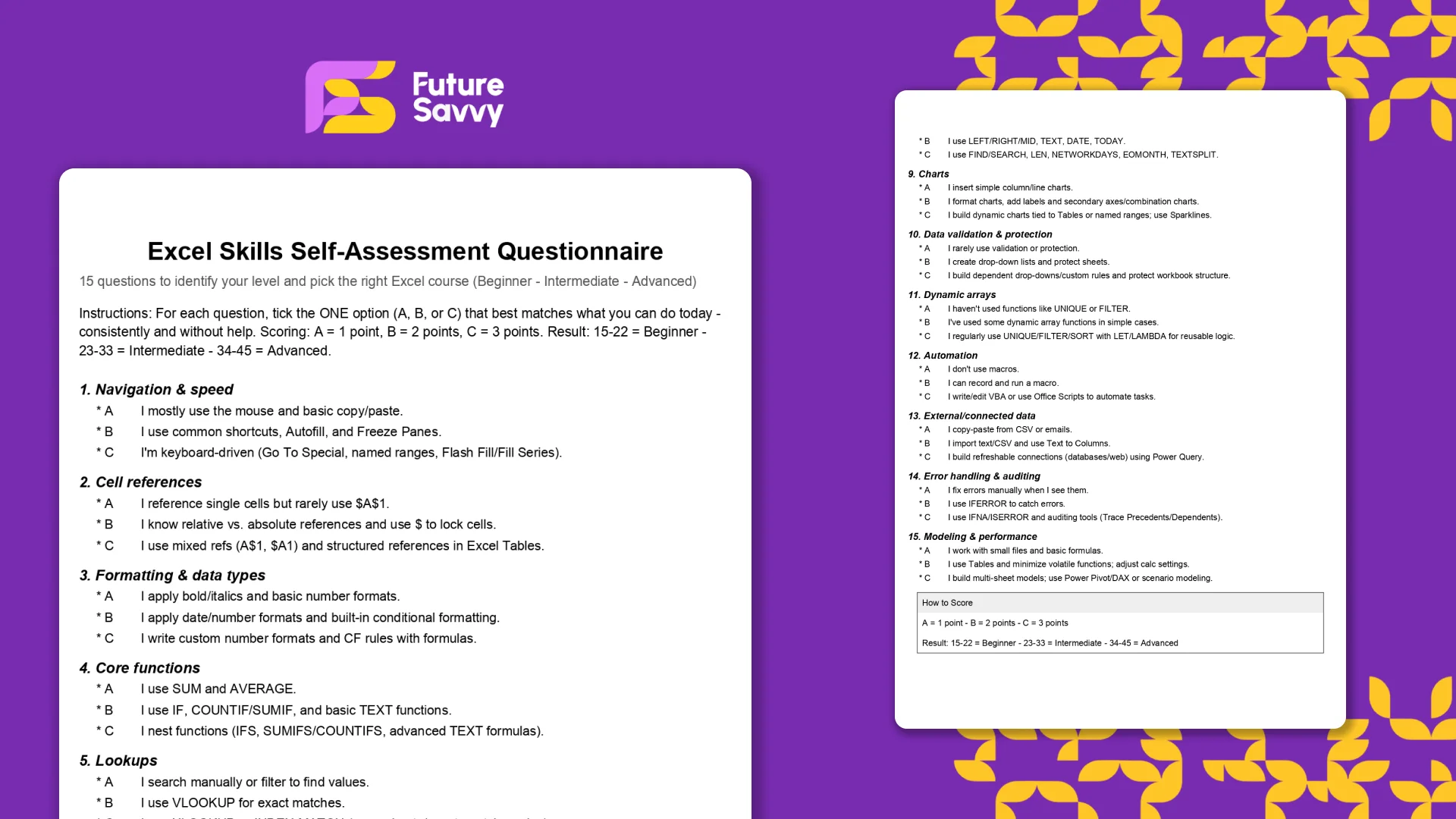
Excel Skills Self-Assessment Questionnaire
This free, printable Excel Skills Self-Assessment helps you quickly gauge your level and pick the right next step in your learning path. It contains 15 multiple-choice questions spanning navigation, formulas, lookups, tables, PivotTables, charts, dynamic arrays, Power Query, and more. You’ll score yourself and interpret the result to see whether you’re Beginner, Intermediate, or Advanced - then follow tailored course recommendations based on your score.
Insights for modern teams
Stay ahead with our latest learning trends, tools, and success stories. Enter your email address below to receive updates from us.